

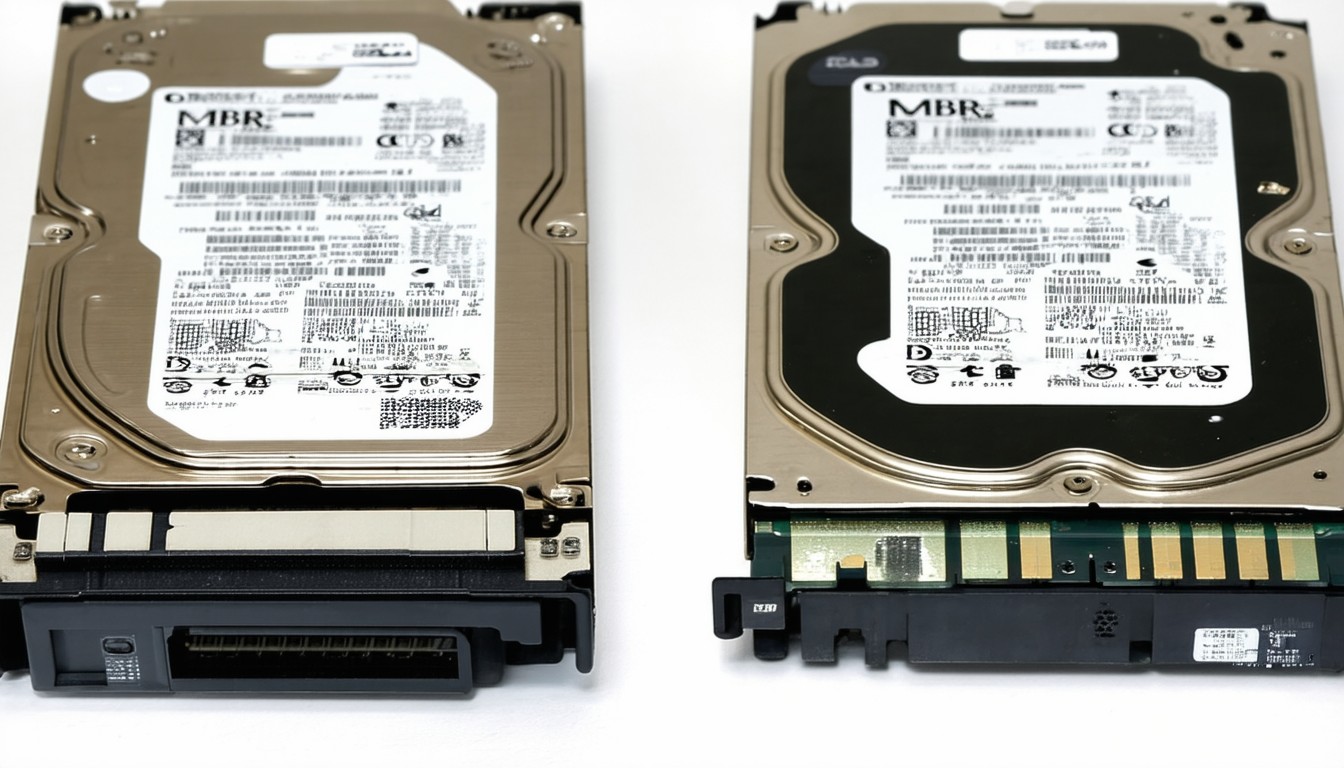
The digital storage landscape has become increasingly complex as storage capacities soar and device capabilities expand. Two partition styles—MBR (Master Boot Record) and GPT (GUID Partition Table)—serve as the backbone for data organization and boot processes across computers worldwide. The choice between MBR and GPT isn’t merely technical; it can fundamentally affect your device’s compatibility, performance, and future scalability.
Adopting the right partition style has shifted from a background setup task to a frontline decision as solid-state drives, high-capacity hard drives, and new operating systems set new standards for what computers can do.
What Are MBR and GPT? A Technical Primer
MBR: The Classic Partition Architecture
Introduced in 1983 alongside IBM PC DOS 2.0, the Master Boot Record partitioning format quickly became the industry standard. MBR stores boot data in the first sector of a storage device and uses a limited, four-entry partition table. This vintage design has defined data storage on personal computers for decades.
Key characteristics of MBR include:
- Maximum disk size support of 2TB
- Up to 4 primary partitions per drive (or 3 plus one extended, within which logical partitions can be created)
- Broad compatibility with legacy BIOS systems and older operating systems
GPT: Modern Standard for Storage
Part of the UEFI specification, the GUID Partition Table was developed to address the limitations of MBR. GPT uses globally unique identifiers to manage partitions and offers robust error-checking, redundancy, and far greater storage support.
Benefits of GPT partitioning include:
- Support for drives well beyond 2TB (theoretically up to 9.4 zettabytes)
- Up to 128 partitions per disk in most Windows systems
- Compatibility with modern hardware and essential requirements for UEFI Secure Boot
Key Differences: MBR vs GPT
Storage Capacity
For many users, the most immediate difference is how much storage the partition style supports. MBR’s 2TB ceiling is a non-starter for modern high-capacity drives. GPT’s zettabyte-level potential, while mostly theoretical today, means users are future-proofed for years to come.
Partition Limits and Flexibility
MBR’s restriction to four primary partitions dates back to simpler times and can hinder advanced setups. In contrast, GPT’s 128-partition standard gives power users and businesses far more flexibility, especially on servers or workstations that require detailed storage segmentation.
Robustness and Redundancy
GPT stores multiple copies of critical partition and boot data, increasing resilience in the event of corruption. MBR, meanwhile, keeps vital information in one place, elevating the risk of catastrophic data loss after physical or logical errors.
“GPT represents a significant leap forward, both in terms of data integrity and the ability to support today’s ultra-high-capacity storage devices,” says data recovery specialist Erin Sutton. “For anyone managing enterprise-level or future-focused systems, GPT is no longer optional.”
Boot Mode and Compatibility
MBR works with the classic BIOS firmware interface, making it ideal for older PCs and some multi-boot environments. GPT requires UEFI, which is standard in PCs built since the mid-2010s and essential for features like Secure Boot.
Real-World Applications: When to Choose MBR or GPT
Upgrading an Older Computer
For legacy machines or operating systems like Windows XP or early Linux distributions, MBR is often the safest choice. Many pre-2012 PCs are not fully UEFI-compatible and may not recognize GPT-partitioned drives as bootable.
Scenario Example: A university IT department maintaining a fleet of decade-old desktops for basic word processing typically sticks with MBR, ensuring seamless boot and recovery processes.
Configuring Modern Desktops and Workstations
Any PC running a recent release of Windows (8, 10, 11) or major Linux distributions benefits from GPT. Not only does this enable using drives larger than 2TB, but it also provides smoother integration with UEFI functions and enhanced drive health monitoring.
Enterprise and Data Center Deployments
Large organizations handling petabyte-scale data absolutely rely on GPT to segment, secure, and maintain vast, multi-disk arrays. GPT’s error-checking reduces the risk of downtime, while its lack of a four-partition maximum streamlines complex virtualization, backup, and storage solutions.
Migration: Switching from MBR to GPT
Transitioning between partition styles can be necessary when upgrading drive capacities or operating systems. Most modern drive management tools—built into Windows, macOS, and various Linux distros—support the conversion from MBR to GPT, though not always without data risk.
Safe migration checklist:
1. Backup all important files
2. Check firmware mode (BIOS or UEFI)
3. Choose a reliable partition management tool (e.g., Diskpart, GParted)
4. Follow vendor-specific steps to convert, and verify success before use
In practice, data professionals warn against hasty conversions, especially when dealing with mission-critical drives:
“Always double-check system compatibility before converting storage types. The right partition style can make or break your storage reliability,” states IT consultant Joseph Lin.
Security and Reliability Considerations
Security-minded users often prefer GPT due to its CRC32-based integrity checks and backup headers. In contrast, MBR’s single-point-of-failure architecture exposes users to data corruption risks, particularly after improper shutdowns or malware attacks.
For those using full-disk encryption, both MBR and GPT are compatible with mainstream solutions, though UEFI/GPT systems tend to interact more smoothly with modern security modules and protocols.
Conclusion: Which Partition Style Should You Choose?
Deciding between MBR and GPT should be grounded in the realities of your hardware, operating system, and anticipated storage needs. For newer systems, larger drives, and environments where reliability is non-negotiable, GPT delivers clear advantages. However, MBR continues to have a role in legacy setups and cross-platform scenarios.
Understanding your device’s firmware and intended usage is essential. Most users upgrading or building modern systems will benefit from GPT, positioning themselves for greater flexibility, security, and future scalability.
FAQs
What is the main difference between MBR and GPT?
MBR is the older partition style limited to 2TB drives and up to 4 partitions, while GPT is newer, supporting much larger drives and more partitions, incorporating redundancy and error-checking.
Can Windows boot from a GPT drive?
Yes, but only on systems with UEFI firmware. Legacy BIOS systems cannot boot from GPT drives without special configurations.
Is it possible to convert MBR to GPT without losing data?
Some partition tools offer conversion options without data loss, but it is always recommended to back up important files before attempting any partition changes.
Do all operating systems support GPT?
Most modern OSes (Windows 10/11, macOS, Linux) fully support GPT, but older versions may not recognize GPT drives or may not boot from them.
Which is better for SSDs: MBR or GPT?
GPT is generally the preferred option for SSDs, especially on newer systems, as it supports advances in drive technology and security features.
When should I use MBR instead of GPT?
Use MBR for booting older PCs, installing legacy operating systems, or when the hardware does not support UEFI. Otherwise, GPT is the optimal choice for most current scenarios.












