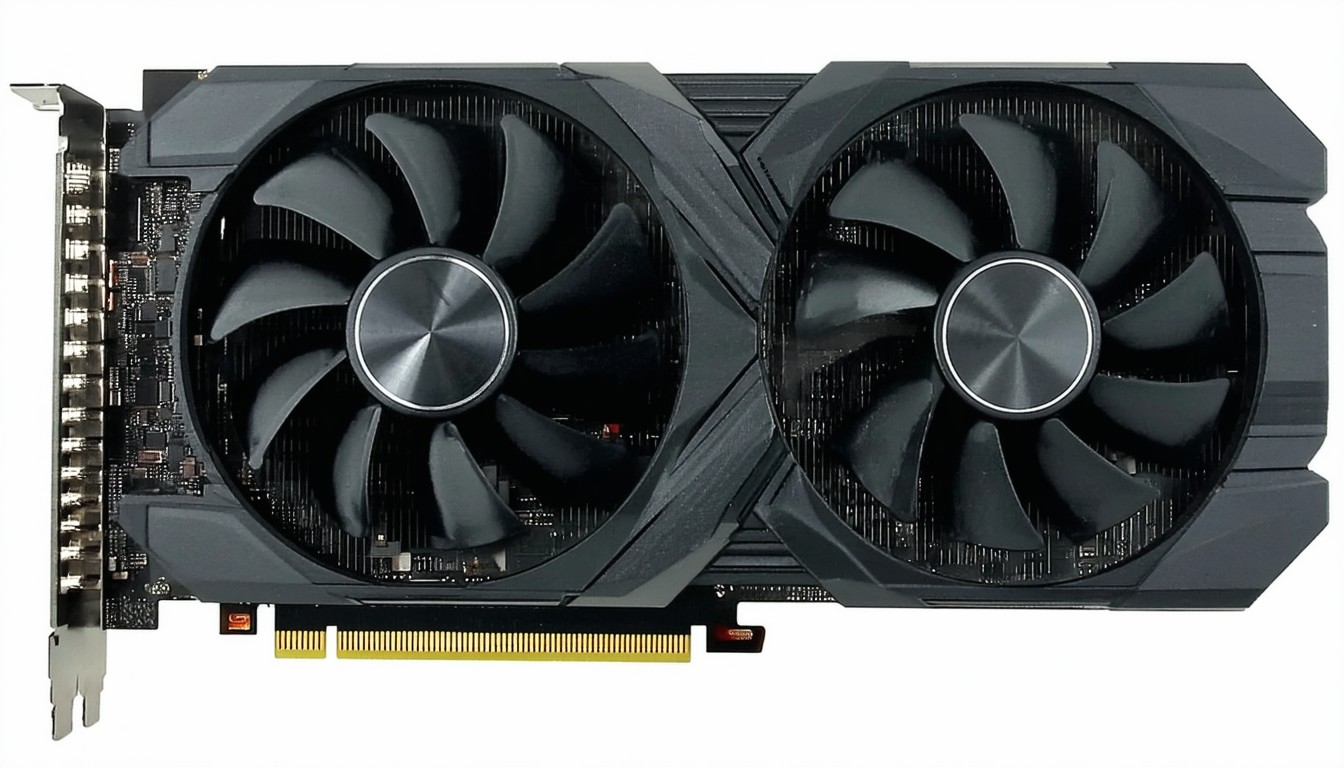
Graphics Processing Units (GPUs) have become the workhorses of gaming, creative design, and artificial intelligence workflows. For many, a silent graphics card—or one whose fans are not spinning—can be concerning, particularly when performance and longevity are on the line. Yet, the sight of stationary GPU fans is not always a sign of hardware failure. In fact, with advances in GPU efficiency and thermal management, there are several nuanced reasons why fans may remain still even under moderate loads.
From eco-friendly zero RPM modes to firmware settings and potential hardware issues, understanding the root causes is essential. As demand for high-performance GPUs continues to surge, both experienced enthusiasts and newcomers face the question: When should you worry about your GPU fans not spinning—and what actionable steps can resolve the issue without risking hardware damage?
The Most Common Causes of GPU Fans Not Spinning
The reasons behind GPU fans not spinning are varied, ranging from intentional manufacturer design to simple physical obstructions.
1. Zero RPM Fan Mode by Design
Modern GPUs from NVIDIA and AMD often feature a “zero RPM” or semi-passive cooling mode. In these configurations, fans stay off at low temperatures (typically below 50°C), only starting once the card heats up under demanding loads.
This approach significantly reduces noise during light use such as browsing or video playback, extending the lifespan of the fan assemblies.
“Zero RPM modes are now standard across many GPU models,” explains hardware analyst Leo Burdett. “Users should only be concerned if fans stay still under heavy gaming or rendering, not during basic desktop tasks.”
2. Power Connector or Cable Issues
A surprisingly frequent cause stems from improper installation. Many dedicated graphics cards require one or more PCIe power connectors. If these are not securely attached, the GPU may lack the power to spin fans, or even fail to start entirely.
Loose or damaged fan cables inside the GPU shroud can also interrupt power to the fans. Checking these connections should be among the first diagnostic steps.
3. Dust and Obstructions
Over time, dust buildup can impede fan blades, causing them to seize. In some scenarios, cables or other case objects may physically block the fan’s movement—particularly in cramped PC builds.
Routine cleaning with compressed air and careful cable management help minimize such risks, making fan maintenance a crucial aspect of hardware care.
4. Outdated BIOS or Driver Conflicts
Firmware and driver discrepancies can also be culprits. An outdated BIOS or a conflict arising from a recent graphics driver update might interfere with fan curve profiles or the detection of the GPU itself.
Manufacturers frequently release updates to address thermal and fan control optimizations, underscoring the importance of keeping all related software current.
Diagnosing GPU Fans That Aren’t Spinning
When a GPU’s fans remain still, ruling out benign causes versus those requiring intervention is key.
Initial Checks: Temperature Thresholds and Load
First, monitor your GPU’s operating temperature using utilities like MSI Afterburner, HWMonitor, or the built-in Windows Task Manager. If idle temperatures are well below 50–55°C and the system is running light workloads, a zero RPM fan policy may be active—no cause for alarm.
Pushing the GPU with a game or a benchmarking tool (such as Unigine Heaven or 3DMark) can quickly reveal whether the fan engages above certain temperature thresholds.
Visual and Physical Inspections
Power down and unplug the system. Open your case:
- Check for dust accumulation around the fans and heat sinks
- Ensure no cables or screws are impeding the fan assembly
- Confirm PCIe power connectors are firmly attached
In some instances, gently spinning the fan blade by hand can unstick a slightly jammed bearing, but this is only a temporary solution.
Software and Firmware Troubleshooting
Ensure all drivers are updated from official sources—either NVIDIA/AMD or OEM partners such as ASUS and MSI. If issues persist, checking for a GPU BIOS update via the manufacturer’s utility can resolve fan control bugs, but such updates should be performed cautiously, following all documented procedures.
Easy Fixes for Getting GPU Fans Spinning
In many cases, a non-spinning GPU fan can be remedied without advanced technical skills.
Cleaning and Basic Maintenance
- Dust removal: Use compressed air to blow dust out of the fan blades and heatsink, holding the fan in place to avoid over-spinning.
- Cable management: Relocate any errant cables touching the fan blades.
Reinstalling Drivers
- Uninstall graphics drivers using Display Driver Uninstaller (DDU) for a clean slate.
- Install the latest drivers directly from NVIDIA or AMD’s official website.
Checking BIOS Settings
- Ensure that any “fan stop” or “quiet mode” settings in the system or GPU BIOS are configured as desired.
- Resetting to default settings can resolve accidental misconfigurations.
Testing the Fan Directly
If the fan remains non-functional, direct testing may clarify whether the fan or the card’s fan controller is at fault:
- Attach the GPU to another system to test in a new environment.
- Use aftermarket fan curve utility to create a custom profile and see if the fan responds.
Considering RMA or Professional Repair
If after all diagnostics and basic fixes the fans refuse to spin even under high load, the likely culprit is a faulty fan motor or controller. Many GPUs carry several years of warranty. Contacting the manufacturer for repair or replacement may be the safest course.
Preventing Future GPU Fan Issues
Preventive care is often the most cost-effective solution. Regularly scheduled cleaning, careful cable routing, and maintaining updated drivers can collectively stave off fan-stopping problems.
Many custom PC builders now design airflow-optimized cases and employ positive-pressure configurations, minimizing dust ingress and extending GPU lifespan.
Conclusion
A GPU fan that isn’t spinning is not always a red flag. With many modern GPUs implementing zero RPM technology and semi-passive cooling policies, stationary fans at low load are often intentional. However, persistent silence from the fans during intensive tasks signals a need for closer inspection—whether it’s checking for blocked blades, confirming power connections, or updating drivers.
Addressing these issues methodically often resolves most cases without costly replacement. For ongoing peace of mind, regular maintenance and keeping up with vendor updates will help ensure your GPU runs cool and reliable for years.
FAQs
Why are my GPU fans not spinning when my PC is idle?
Most recent GPUs feature zero RPM modes, keeping fans off until temperatures reach a certain point. This reduces noise and prolongs fan lifespan during light tasks.
Should I worry if my GPU fans never spin at all?
If the fans fail to activate even during gaming or other demanding work, it could indicate power supply issues, blocked fans, or faulty hardware. In that case, further troubleshooting or professional support is recommended.
Can I force my GPU fans to spin manually?
Yes, third-party software like MSI Afterburner allows you to set custom fan curves that will activate the fans according to your preferences, regardless of temperature.
Is it safe to clean GPU fans myself?
Cleaning GPU fans with compressed air is generally safe if the computer is powered off and care is taken not to over-spin or damage the blades. Always hold the fan steady while cleaning.
What should I do if none of the simple fixes work?
If cleaning, driver updates, and power checks don’t resolve the issue, contact the manufacturer about a warranty repair or replacement, as this may indicate a deeper hardware problem.