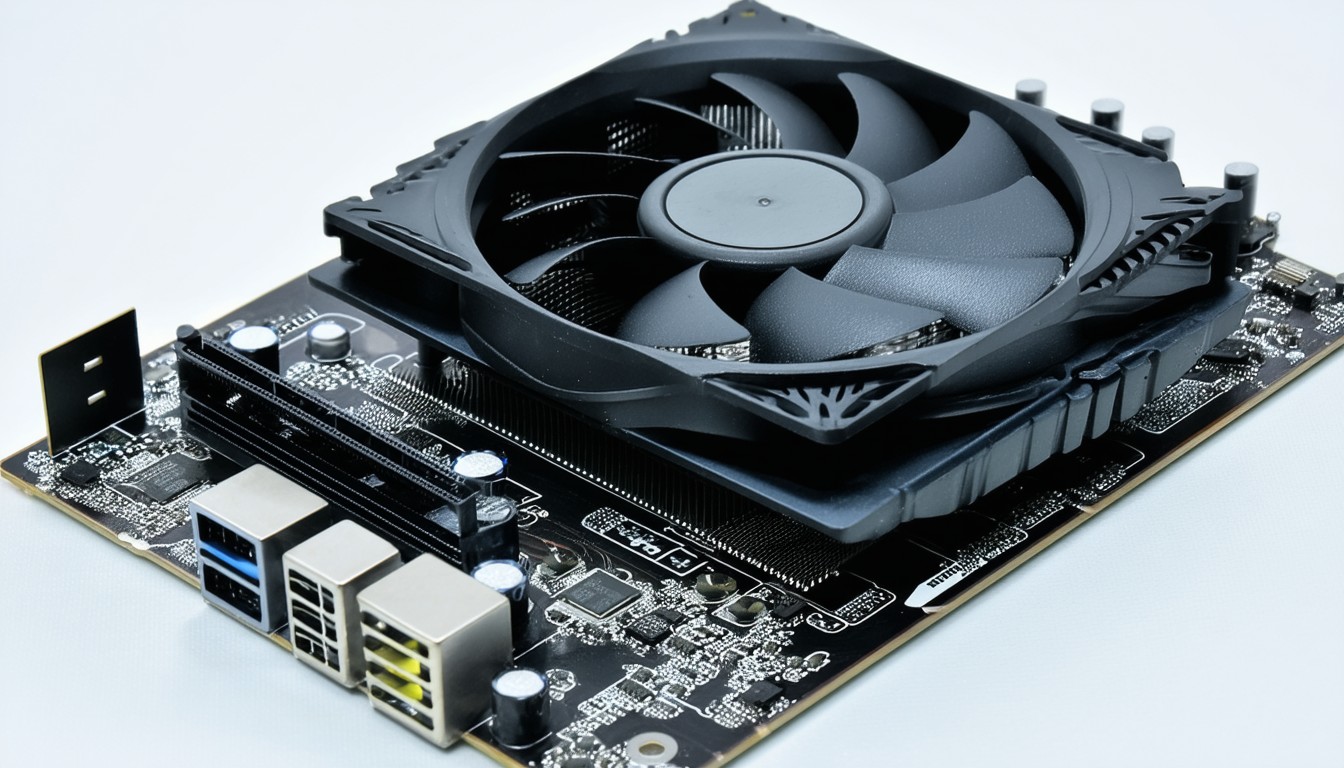
Modern PC builders and hardware enthusiasts are often met with a complex array of connectors on today’s motherboards. One term that regularly raises questions is CPU OPT—short for CPU Optional—found among the various fan headers. Far from being an afterthought, CPU OPT plays a key role in optimizing cooling strategies, supporting high-performance rigs, and protecting valuable components. But what does CPU OPT mean in practice, and how does it differ from the primary CPU fan header?
The Evolution of Motherboard Cooling: Why CPU OPT Exists
As processors have grown more powerful, with flagship CPUs from both Intel and AMD frequently surpassing 100W in typical draw, effective thermal management has become crucial. Heat is the hidden adversary of peak performance—allowing systems to run cooler extends longevity and squeezes out every bit of speed. In response, manufacturers have expanded beyond the basic CPU_FAN header, integrating additional connectors labeled CPU_OPT.
These optional fan headers enable builders to connect secondary cooling fans, support complex cooling solutions, and provide flexibility for custom setups, such as dual-fan air coolers or all-in-one (AIO) liquid coolers with multiple radiator fans.
CPU OPT Meaning: Function and Differentiation
Understanding the distinction between CPU_FAN and CPU_OPT headers can make the difference between a robust system and one prone to unexpected shutdowns.
Defining CPU OPT on Motherboards
The CPU OPT header is designed as an auxiliary connector for cooling fans associated with the CPU. While the main CPU_FAN header is mandatory (motherboards often halt booting if no fan is detected here), the CPU_OPT header is optional, letting users attach an extra fan for increased airflow or attach the second fan included with many premium cooling solutions.
Key characteristics of CPU OPT:
- Location: Usually placed adjacent to the main CPU fan header, near the processor socket.
- Design: Almost always a 4-pin connector supporting PWM (pulse-width modulation) control.
- Function: Mirrors the
CPU_FANheader’s PWM signal—fans attached here will spin at the same speed as the main CPU fan by default. - Flexibility: Often used for dual-fan tower coolers or multiple radiator fans in AIO setups.
Differentiating CPU OPT vs CPU FAN
While both headers appear nearly identical physically, their underlying logic on the motherboard differs:
- CPU_FAN is critical for boot: If a fan isn’t detected, most motherboards throw a warning or halt for safety.
- CPU_OPT doesn’t affect boot: It’s optional, hence the name, and typically doesn’t trigger BIOS warnings if empty.
- Fan control linkage: Both headers may be linked by default, but some BIOS interfaces allow for separate speed curves or manual adjustments, depending on the board’s sophistication.
“CPU_OPT is a convenience feature for advanced cooling setups. It’s not required for basic functions, but it brings powerful customization for those looking to optimize CPU thermals,” says Linus Sebastian, a well-known hardware reviewer.
In practice, using CPU OPT allows seamless RPM synchronization between two CPU cooler fans, adding redundancy and smoothing airflow over heat sinks or radiators.
Typical Use Cases: When and How to Use CPU OPT
Not every build will need the CPU OPT header, but for enthusiasts or those targeting silence and high performance, its role becomes apparent.
Dual-Fan CPU Air Coolers
High-end air coolers like the Noctua NH-D15 or be quiet! Dark Rock Pro 4 feature twin fans for enhanced heat dissipation. Most motherboard manuals recommend connecting the primary fan to CPU_FAN and the second to CPU_OPT to ensure both ramp up or down according to processor load.
AIO Water Cooling Solutions
Many AIO (all-in-one) liquid coolers, such as Corsair iCUE or NZXT Kraken series, include two or even three radiator fans. These kits often instruct users to plug the first radiator fan into CPU_FAN and the second into CPU_OPT for synchronized performance, especially under heavy workloads or overclocked conditions.
Advanced Custom Loops
Enthusiasts assembling custom water cooling systems might utilize both headers for push-pull fan setups on radiators, or to ensure redundancy—should one fan fail, the system maintains some cooling capacity.
Benefits and Limitations: What to Know Before Plugging In
Advantages of CPU OPT
- Simplified cable management: Less need for Y-splitters or fan hubs when running dual fans.
- Automatic synchronous control: Follows CPU temperature and load for consistent cooling.
- Redundancy: If one fan stops, the other may provide critical backup airflow.
- Customizability: Some BIOS/UEFI setups enable tweaking curves for CPU OPT independently.
Potential Pitfalls and User Errors
- Confusing with CHA_FAN/SYS_FAN: Case/system fan headers aren’t managed with the same logic—using them can disrupt intended cooling curves.
- Insufficient wattage for high-power fans: Exotic fans or grouped connections can overload a single header’s output—always check your motherboard manual for amperage limits.
- BIOS limitations: Not every board enables granular control for CPU OPT; lower-end models may simply mirror CPU_FAN.
Real-World Example: Gaming PC with Overclocked CPU
An overclocked Intel Core i7 paired with a dual-fan tower cooler sees temperature spikes during gaming. Both fans connected to CPU_FAN and CPU_OPT respond to processor heat—boosting RPMs for intense sessions, spinning down for silence during idle. Without CPU_OPT, a Y-splitter would be needed, adding cable clutter and losing the safeguards of motherboard-level monitoring.
BIOS Setup and Software Monitoring
For users eager to optimize their cooling profiles, most modern UEFI BIOS interfaces provide options to configure each fan header. Premium motherboards offer nuanced control, while entry-level ones default to linking CPU_FAN and CPU_OPT.
Popular monitoring software, such as HWMonitor or manufacturer utilities like ASUS Fan Xpert and MSI Dragon Center, display real-time RPMs for each header. This transparency allows proactive troubleshooting and targeted fan curve adjustments.
Conclusion: Unlocking the Potential of CPU OPT for Modern Builds
In the landscape of modern PC building, the CPU OPT header is more than an afterthought. It supports smarter, safer, and more efficient cooling—especially in high-performance or overclocked environments. While it’s not mandatory for every system, leveraging CPU OPT unlocks additional flexibility and reliability for anyone serious about thermal management. As component demands rise, thoughtful harnessing of features like CPU OPT remains a best practice among experienced builders.
FAQs
What is the main difference between CPU_FAN and CPU_OPT headers?
The CPU_FAN header is essential for booting, as the motherboard requires a fan to be connected for safety; CPU_OPT is optional and meant for an additional fan, usually for enhanced cooling setups.
Can I use CPU_OPT for regular case fans?
While technically possible, CPU_OPT is optimized for CPU cooler fans. For case fans, it’s better to use dedicated system or chassis fan headers (CHA_FAN or SYS_FAN) for more targeted control.
Will my PC work if nothing is connected to CPU_OPT?
Yes, the system will operate normally without anything plugged into CPU_OPT—it’s there to provide flexibility for cooling but is not required for system functionality.
Can I control CPU_OPT fan speed independently from CPU_FAN?
On many motherboards, CPU_OPT simply mirrors the CPU_FAN fan curve, but some higher-end boards allow separate control through the BIOS or software.
Is CPU_OPT compatible with water pump connections?
While some users connect water pumps to CPU_OPT, many motherboards offer a dedicated “PUMP_FAN” header for this purpose, providing more appropriate wattage and monitoring options.
Should I connect both CPU cooler fans to CPU_FAN using a splitter or to CPU_FAN and CPU_OPT separately?
Connecting to CPU_FAN and CPU_OPT separately is generally preferable for monitoring and safety, as the motherboard can detect failures or set independent speed curves if supported.