

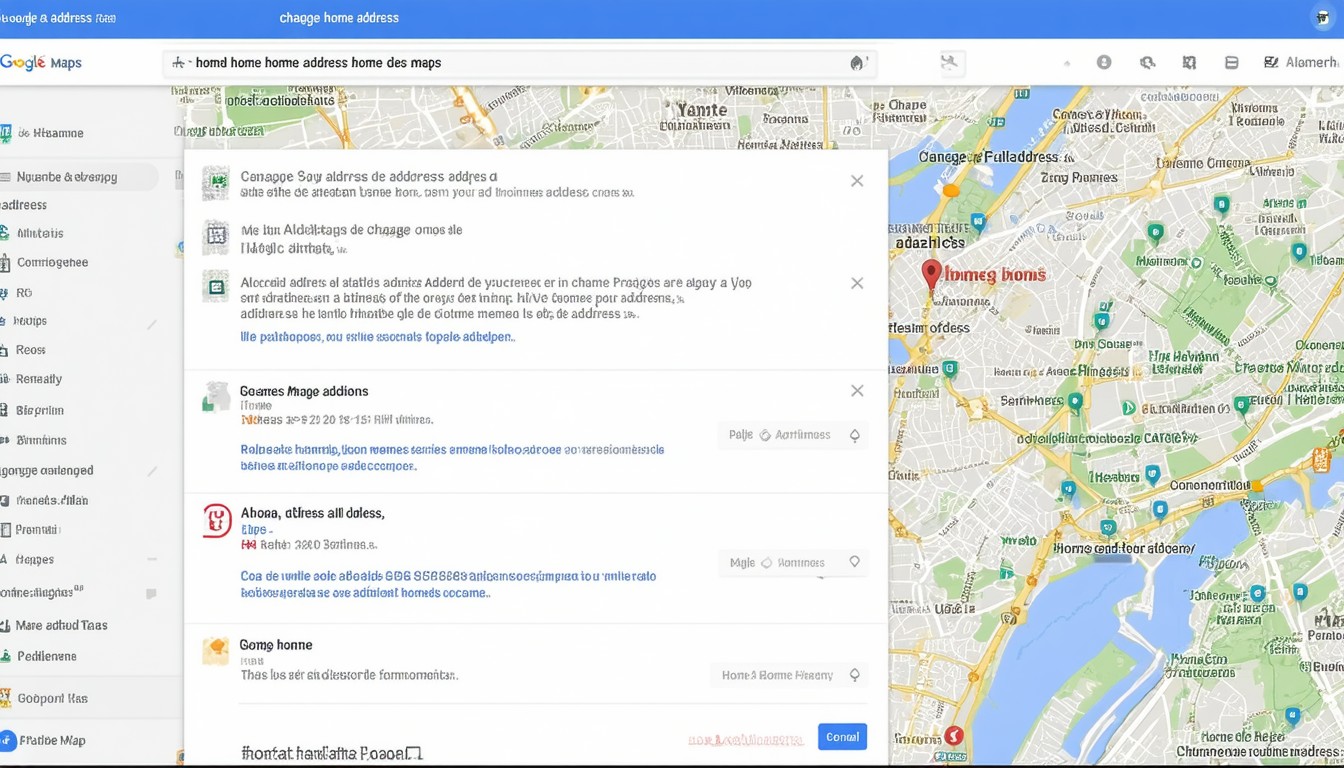
Changing your home address on Google Maps may seem like a small detail, but in a world dominated by personalized algorithms and location-based services, accurate address information can significantly streamline everyday life. Google Maps powers not only directions but also suggestions, commute times, smart home integrations, and location sharing with loved ones or colleagues. When your home address is outdated, you risk misleading navigation, delivery errors, and even confusion with digital assistants like Google Assistant, which references your saved locations for a range of automated tasks.
In today’s digitally connected environment, maintaining up-to-date location records has become part of personal data hygiene. According to a survey by Pew Research Center, a growing share of Americans use navigation apps to manage daily commutes and errands, highlighting the role platforms like Google Maps play in organizing modern routines and interactions.
Step-by-Step: How to Change Your Home Address on Google Maps
Updating your home address on Google Maps is designed to be user-friendly, whether you use a smartphone, tablet, or desktop. Google’s continual focus on user experience ensures that most changes can be accomplished in just a few steps.
Updating on Mobile Devices
The Google Maps mobile app is integrated deeply into Android and iOS devices. Here’s how you can update your home address using the app:
- Open the Google Maps app on your device and ensure you’re signed in to your Google account.
- Tap on your profile icon or initial, usually located at the top right.
- Navigate to “Your places” and then select the “Labeled” tab.
- Under “Home,” tap the three-dot menu or “Edit Home.”
- Enter your new address or move the pin to the most accurate location.
- Save your changes.
This straightforward process ensures that your navigation shortcuts, arrival times, and custom Google features reflect your correct home location.
Revising Address on Desktop
For those who use Google Maps primarily at their computers or need more granular control:
- Go to Google Maps at maps.google.com and log in to your Google account.
- Click on the menu icon (three horizontal lines), then select “Your places.”
- Find your “Home” address under the Labeled tab, and click the edit icon next to Home.
- Enter your updated address or adjust the map pin manually.
- Click “Save” to confirm your changes.
The updated information will sync across all devices using the same Google account, keeping your navigation consistent.
When Address Corrections Don’t Stick
While Google Maps is remarkably robust, some users encounter issues where the saved home address fails to update correctly or reverts to previous entries. In these cases, it may help to:
- Clear the app’s cache or re-install the app.
- Ensure you’re connected to the internet during the update.
- Check for updates to the Maps app to access the latest features.
If persistent errors occur, seeking support through Google’s official help resources or community forums often resolves more complex location issues.
“Inaccurate address data can disrupt not just your commute, but also delivery services, ride-sharing pickups, and emergency response location accuracy. Keeping location details current is central to digital convenience and safety,” notes Dana Chen, a digital navigation systems analyst.
Practical Scenarios and Key Benefits of Updating Your Address
A correct home address on Google Maps is more than a matter of convenience. Consider these real-world scenarios:
- Ridesharing Efficiency: Apps like Uber and Lyft rely on your Google Maps data for quick pickups. A wrong address sends cars to the wrong location and can delay your ride.
- E-commerce and Deliveries: With the explosion of home deliveries, ensuring your address is current helps prevent lost packages or mix-ups.
- Home Automation: Smart devices that use geofencing—like thermostats adjusting when you “arrive home”—depend on maps knowing your real address.
- Emergency Preparedness: First responders sometimes utilize phone-based location sharing; a correctly labeled home helps speed up emergency assistance.
These scenarios reflect how integrated accurate mapping has become in daily life, bridging the gap between online tools and offline safety and efficiency.
Common Issues and Troubleshooting Tips
Despite Google’s intuitive systems, users sometimes encounter common hurdles:
- Cannot Find Exact Address: Occasionally, new developments or rural locations may not appear. Dropping a map pin manually and labeling it as “Home” can be a quick workaround.
- Multiple Google Accounts: If you use several Google accounts on one device, ensure you’re editing the correct profile—conflicts can lead to synchronization errors.
- Privacy Concerns: While your labeled Home and Work addresses are private by default, it’s wise to regularly review which apps have access to your Google account data.
Pragmatic troubleshooting and an understanding of Google’s security architecture give users peace of mind when updating sensitive address data.
Best Practices for Managing Personal Locations on Google Maps
As digital location tools become more sophisticated, users benefit from following certain best practices:
- Periodically Review Saved Places: Keep not just Home and Work addresses up-to-date but also other frequent destinations for fast navigation.
- Leverage Custom Labels: Besides “Home” and “Work,” label other frequent destinations for even quicker routing.
- Stay Updated on App Features: Google frequently rolls out updates improving location management, such as enhanced privacy controls or new shortcut integrations.
Being proactive ensures your data reflects current realities, improving the performance of navigation, personal safety features, and integrated apps across platforms.
Conclusion: Keeping Your Google Maps Home Address Fresh
Ensuring that your home address on Google Maps is current may appear routine, but its impact radiates through every facet of modern digital living—from daily commutes and smart home features to timely deliveries and even personal safety. By taking a few minutes to verify and update this information, users can streamline real-world logistics and unlock the full benefits of Google’s location-based services.
Proactively maintaining your digital addresses not only keeps daily life running smoothly but also positions you to take advantage of the rapidly evolving capabilities of personalized navigation and automation.
FAQs
How often should I update my home address on Google Maps?
Update your home address whenever you move or if you notice any inaccuracies. Regular checks can help ensure your navigation and linked services function correctly.
Will changing my home address on Google Maps update my address for all Google services?
Updating your address on Google Maps affects navigation and location-based Google features, but it does not automatically update your address for Google account billing or other services—those must be changed separately.
What if my new address doesn’t appear in Google Maps search?
If your address isn’t listed, try manually adjusting the map pin to your location and saving it as “Home.” Google frequently updates its maps and may add new addresses in the future.
Is my home address on Google Maps visible to other people?
Your home address saved in Google Maps is private and only visible to you unless you explicitly share your location or account information with others.
Can I have more than one “Home” saved in Google Maps?
Google Maps allows only one address to be labeled as “Home.” However, you can add additional frequent locations with custom labels for easy access.
Does changing my home address affect Google Photos or other apps?
Changing your address in Google Maps won’t impact Google Photos or non-location-based apps but can enhance experiences on apps that utilize real-time location data, such as commute summaries or geofencing triggers.












