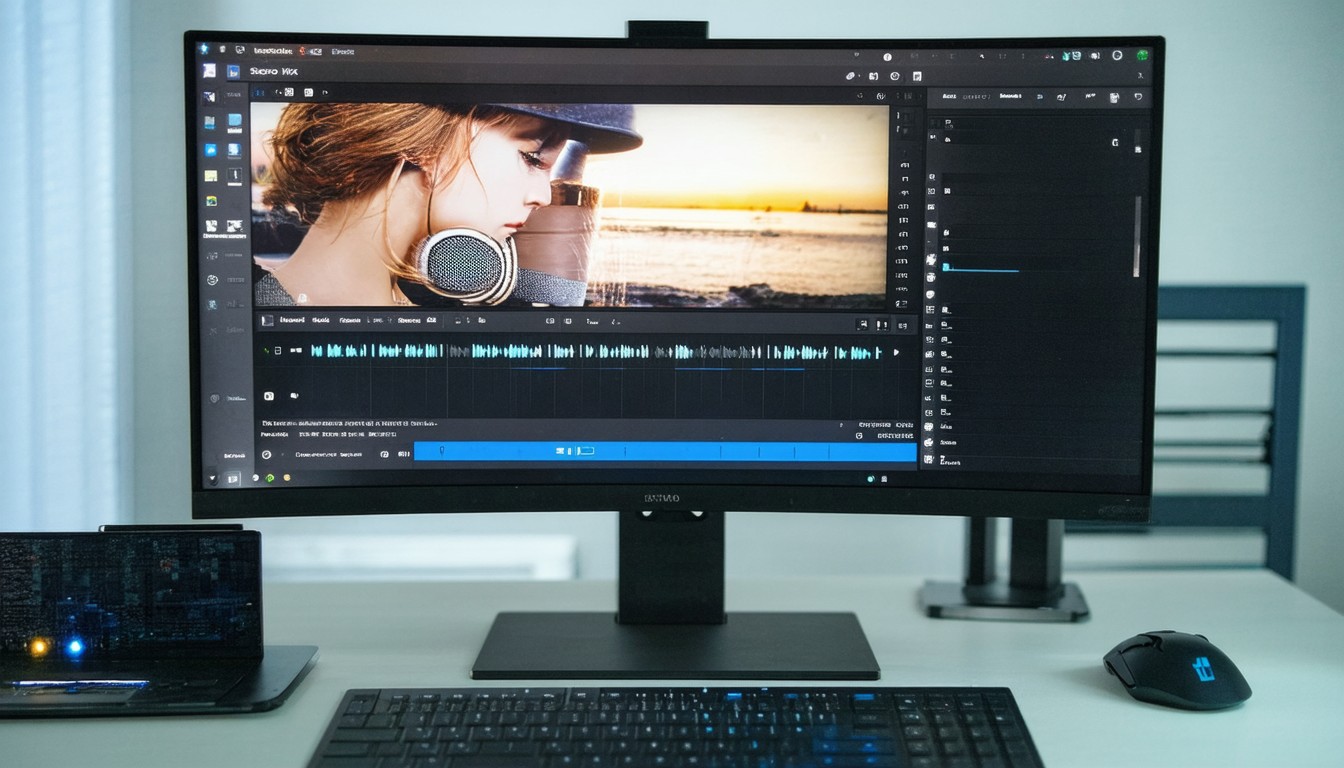
For creators, educators, and gamers alike, the ability to capture system audio directly is crucial. This is where Stereo Mix, a lesser-known but powerful audio recording feature in Windows 10, enters the picture. Stereo Mix allows users to record exactly what they hear through their speakers—ideal for recording webinars, podcasts, game soundtracks, or streaming music for tutorials.
Despite its utility, Stereo Mix isn’t enabled by default on many modern devices, leaving new users searching for answers. The inconsistent availability is rooted in both driver configurations and manufacturer decisions, making the process of enabling Stereo Mix unintuitive for much of the Windows 10 user base. Nevertheless, understanding, enabling, and effectively using Stereo Mix opens up a wide array of creative possibilities with minimal technical expertise.
How to Enable Stereo Mix on Windows 10
Step-by-Step Activation Process
Enabling Stereo Mix requires a series of configuration steps within Windows 10’s audio settings. The following process applies to most systems, though variations may exist depending on hardware and drivers:
- Right-click the speaker icon in the system tray (bottom-right corner).
- Choose ‘Sounds’ or ‘Open Sound settings’, then go to the ‘Recording’ tab.
- Right-click in the device list and select ‘Show Disabled Devices’—this is essential, as Stereo Mix often appears hidden.
- Locate ‘Stereo Mix’, right-click on it, and choose ‘Enable’.
- If you intend to record with it, right-click again and select ‘Set as Default Device’.
On some machines, the feature is labeled differently—such as “What U Hear” on certain Sound Blaster drivers—but the underlying functionality remains the same.
Troubleshooting When Stereo Mix Is Missing
It’s not unusual to find that Stereo Mix is completely absent from the device list, leaving users frustrated. This often points to one of the following factors:
- Audio Drivers: The installed driver may not support Stereo Mix, especially those supplied by Windows Update or laptop OEMs.
- Manufacturer Policies: Some PC manufacturers choose to disable or omit this feature due to copyright or hardware simplicity concerns.
For those encountering this roadblock, updating audio drivers from the official manufacturer (e.g., Realtek, Conexant) can help. In other instances, third-party software solutions act as workarounds, though they may introduce added complexity.
“While Stereo Mix is not available on every Windows 10 device by default, many users have re-enabled it simply by updating their audio drivers or seeking out downloadable alternatives. It’s a vital feature for streamers, educators, and content creators.”
— Audio Systems Analyst, PC Hardware Review
Using Stereo Mix in Real-World Scenarios
Content Creation: Podcasting, Tutorials, and Streaming
Creators often leverage Stereo Mix to capture music, sound effects, or live streams without the quality loss that comes from recording via physical microphones. For example, educators recording explainer videos benefit from this direct capture method, ensuring system alerts or integrated sounds are included in top-notch quality.
Music instructors producing screen-recorded lessons, or podcasters compiling remote audio conversations, often cite Stereo Mix as a game-changer for workflow efficiency. By combining system and microphone audio sources, creators can deliver rich, immersive content without complex mixing equipment.
Gaming and Media Sharing
On the gaming front, users deploy Stereo Mix to record in-game audio alongside their commentary. Many gaming streamers and YouTubers highlight how this functionality, combined with screen capture tools, streamlines the editing process and preserves surround sound cues well-suited for post-production.
Alternative Methods and Modern Limitations
Why Stereo Mix May Be Less Common Today
The rollout of privacy-conscious hardware and a shift toward digital rights management has made audio routing more hardware-dependent in recent years. Many consumer laptops and all-in-one desktops no longer ship with Stereo Mix enabled, explicitly or otherwise. Furthermore, the proliferation of cross-platform recording software occasionally obviates the need for Stereo Mix by offering robust, built-in audio routing.
Third-Party Recording Solutions
Software such as OBS Studio, Audacity, and Voicemeeter Banana provide alternative ways to manage and mix audio sources. Some of these tools bypass the operating system’s restrictions by creating their own virtual audio channels, but at the cost of additional setup complexity.
Popular solutions include:
- Virtual Audio Cable: Routes audio between applications.
- Voicemeeter Banana: Combines multiple audio sources for greater control.
- Audio Capture in OBS Studio: Customizable options for both mic and desktop sound.
These alternatives help bridge the gap when Stereo Mix isn’t available, but a direct hardware-level solution typically offers the most reliable, high-quality results.
Expert Insights: Security and Legal Considerations
While Stereo Mix is a boon for creators, some potential risks and responsibilities come into play. Copy-protected media—like DRM-enforced streaming services—may restrict or legally prohibit recording via system audio, even on technically-enabled devices. It’s critical for users to be aware of local copyright laws and platform terms of use before distributing recordings captured with Stereo Mix.
Cybersecurity advocates also caution that system-level audio capture can introduce privacy issues if misused, particularly on shared or enterprise devices.
Practical Guide: Tips for Effective Use
To maximize audio quality and minimize potential headaches:
- Always update your audio drivers from official sources for best results.
- Adjust recording levels in the Stereo Mix properties to prevent distortion or background noise.
- Combine Stereo Mix with digital audio workstations (DAWs) for fine-tuned editing.
- Use headphones during capture to prevent audio feedback loops.
These incremental steps can make a pronounced difference, especially for professional or semi-professional content creators seeking efficiency without additional gear.
Conclusion: Unlocking Creative Possibilities with Stereo Mix
Stereo Mix remains an essential—if sometimes hidden—feature for anyone wanting to record system audio directly in Windows 10. Although not enabled by default on every system, a combination of updated drivers, savvy troubleshooting, and modern software alternatives makes this tool accessible for most users. By understanding when and how to use Stereo Mix, creators, educators, and streamers can craft higher-quality content and expand their capabilities without expensive hardware.
FAQs
What is Stereo Mix used for in Windows 10?
Stereo Mix allows users to record exactly what’s playing through their speakers, useful for making tutorials, recording webinars, or streaming system sound.
Why isn’t Stereo Mix available on my computer?
Some devices lack Stereo Mix due to manufacturer decisions or outdated audio drivers. Updating drivers or installing alternatives may resolve the issue.
Can third-party software replace Stereo Mix?
Yes, programs like OBS Studio and Voicemeeter allow advanced audio routing, enabling system sound capture even if Stereo Mix is missing.
Is it legal to record with Stereo Mix?
Recording is legal for personal use, but sharing copyrighted content without permission can violate copyright laws. Always check local regulations and service terms.
Does enabling Stereo Mix affect my computer’s performance?
Using Stereo Mix has minimal impact on performance, as it’s a lightweight system-level feature that simply routes existing audio streams.
How can I improve the sound quality when recording with Stereo Mix?
Adjust the volume levels, use high-quality headphones, and avoid capturing in noisy environments for the best results.