

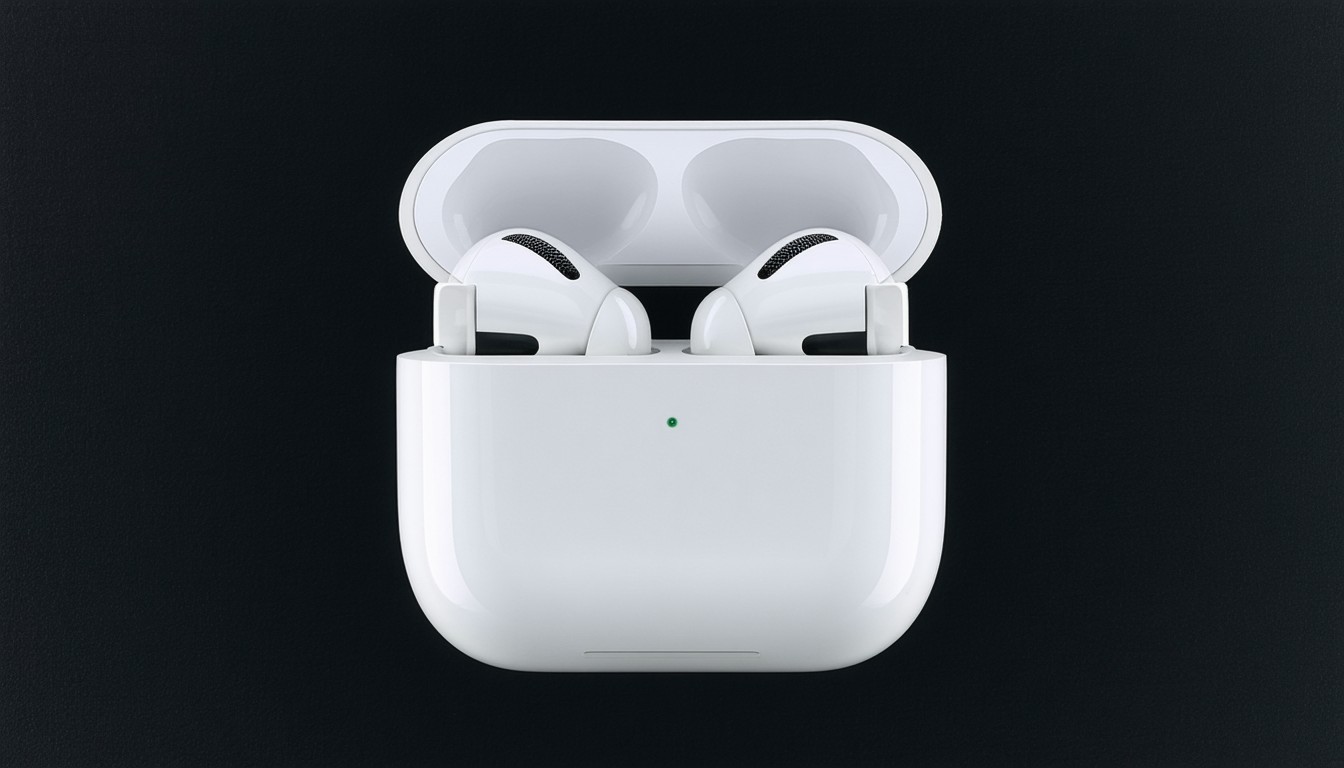
Since their debut, AirPods Pro have become synonymous with seamless wireless audio. Whether you own the original Pros or the latest iteration, knowing how to pair AirPod Pros with various devices remains a crucial skill for anyone who values convenience, premium sound, and staying connected. As consumers rely more on wireless audio — for work calls, workouts, and entertainment — understanding the precise steps to connect AirPods Pro is more relevant than ever. This guide breaks down the process, addresses common hiccups, and highlights expert-backed solutions so you enjoy flawless pairing every time.
How to Pair AirPod Pros with Apple Devices
Apple’s design philosophy ensures AirPods integrate tightly with the broader ecosystem, meaning owners can expect a nearly automatic setup process on iPhones, iPads, and Macs.
Pairing with iPhone and iPad
Apple leverages the H1 or H2 chip in AirPods Pro to enable easy pairing:
- Unlock your iPhone or iPad and enable Bluetooth.
- With AirPods Pro in their case, open the lid and hold them next to your device.
- A setup animation appears on your screen. Tap “Connect.”
- Follow on-screen instructions for features like “Hey Siri” and charging notifications.
Within seconds, AirPods Pro are not only paired to your current device but also to any device linked to your iCloud account, thanks to Apple’s Automatic Device Switching.
As Ken Leung, a wireless audio expert, notes:
“Apple’s unique chip integration means AirPods Pro are among the simplest earbuds on the market to pair and manage, especially for users embedded in the Apple ecosystem.”
Connecting to Mac Computers
Beyond mobile devices, Mac users can also enjoy streamlined connectivity:
- Click the Bluetooth icon in the menu bar.
- Open the AirPods Pro case, ensure they’re in pairing mode, and select them from the available devices list.
- For Macs running macOS Big Sur or later, if the AirPods are associated with your Apple ID, they should appear automatically under the sound output devices.
This unified strategy vastly reduces setup friction for Apple users.
Pairing AirPod Pros with Non-Apple Devices
While designed for Apple, AirPods Pro can connect to almost any Bluetooth-capable device, broadening their versatility for PC, Android, and smart TV users.
Connecting to Android Phones and Tablets
The steps to pair AirPods Pro with Android devices are straightforward:
- Open Bluetooth settings on the Android device.
- Press and hold the setup button on the AirPods Pro case (on the back) until the status light flashes white.
- Select AirPods Pro from the device’s Bluetooth menu.
Of note, not all proprietary features (like ear-detection or spatial audio) will transfer to Android or Windows, but basic playback, call functionality, and microphone access remain.
Using AirPod Pros with Windows PCs
Similar steps apply to pairing with Windows laptops or desktops:
- Navigate to Settings > Devices > Bluetooth & other devices.
- Turn on Bluetooth, select “Add Bluetooth or other device,” and choose Bluetooth.
- Activate pairing mode on AirPods Pro, pick them from the list, and confirm connection.
In practical terms, this universality makes AirPods Pro an effective all-in-one audio solution — from video meetings on a Surface Pro to streaming music on a Chromebook.
Troubleshooting Common AirPod Pro Pairing Issues
Even with user-friendly design, connectivity issues can occasionally arise. According to user surveys, the following are the most frequently reported pairing glitches:
- AirPods not appearing in the Bluetooth menu: Often solved by restarting the device or resetting Bluetooth settings.
- Connection drops or static: Could hint at wireless interference or the need for a firmware update.
- AirPods Pro refusing to connect to a new device: Resetting the AirPods Pro by holding the setup button until the status light blinks amber, then white, often resolves persistent pairing failures.
Apple’s ongoing efforts to push firmware updates have minimized these disruptions. For users in high-density wireless environments — like offices or airports — some interference can persist, but switching Bluetooth channels or updating device drivers typically helps.
Maximizing Features After Pairing
Pairing is just the first step; unlocking premium features is where AirPods Pro shine.
Customizing Controls and Sound Settings
On Apple devices, users can:
- Adjust press-and-hold settings for noise cancellation or Siri.
- Customize tap controls for play/pause and skipping tracks.
- Access the Ear Tip Fit Test via iOS to guarantee an optimal sound seal.
Using Spatial Audio and Noise Cancellation
Owners of AirPods Pro (particularly newer generations) benefit from Adaptive Transparency and Personalized Spatial Audio. For Apple Music and selected apps, spatial audio dramatically enhances immersion, offering a surround-sound experience on the go.
While some features are Apple-exclusive, Android users can still enjoy premium audio quality. Certain third-party apps even offer battery status widgets or EQ presets for AirPods users, closing the gaps across platforms.
Real-World Scenarios: Pairing AirPod Pros in Use
Consider the professional who toggles between a MacBook for Zoom calls and an iPhone for travel. With Automatic Device Switching enabled, AirPods Pro seamlessly transition from work to personal audio.
On the other end, a fitness enthusiast might pair AirPods Pro with an Apple Watch for music during workouts, appreciating the strong Bluetooth range and water resistance.
In both situations, reliable pairing is the foundation that allows users to focus on what matters — productivity, fitness, or relaxation — rather than tech headaches.
Summary: Key Takeaways on Pairing AirPod Pros
Pairing AirPods Pro to any device is designed to be intuitive, echoing Apple’s broader philosophy of user-friendly technology. For Apple device owners, the process is nearly instant, while non-Apple platforms require a few extra manual steps. Troubleshooting is rarely necessary, but when issues arise, basic resets or firmware updates are typically effective. As wireless audio continues to grow in popularity, mastering these pairing techniques ensures that users get the most from their AirPods Pro investment.
FAQs
How do I reset my AirPod Pros for pairing?
Place both AirPods in their case, open the lid, and hold the setup button until the light flashes amber, then white. This resets the AirPods, allowing you to pair them as new with any device.
Can AirPod Pros connect to multiple devices at once?
AirPods Pro can be linked to multiple devices via iCloud, but audio plays from one device at a time. Instant switching between Apple devices is supported, but non-Apple devices require manual reconnection.
What should I do if my AirPod Pros won’t show up in Bluetooth settings?
First, ensure Bluetooth is enabled on your device and that the AirPods Pro are in pairing mode. If they still do not appear, reset the AirPods or restart your device before attempting to pair again.
Are all AirPods Pro features available on Android devices?
Basic functions like playback, calls, and the microphone work on Android, but features such as automatic device switching, ear-detection, and spatial audio are limited to Apple devices.
How can I check if my AirPods Pro are paired successfully?
On Apple devices, check the Bluetooth settings for a connected status or look for the AirPods icon. For other devices, listen for the pairing sound or check the device’s active Bluetooth list.












