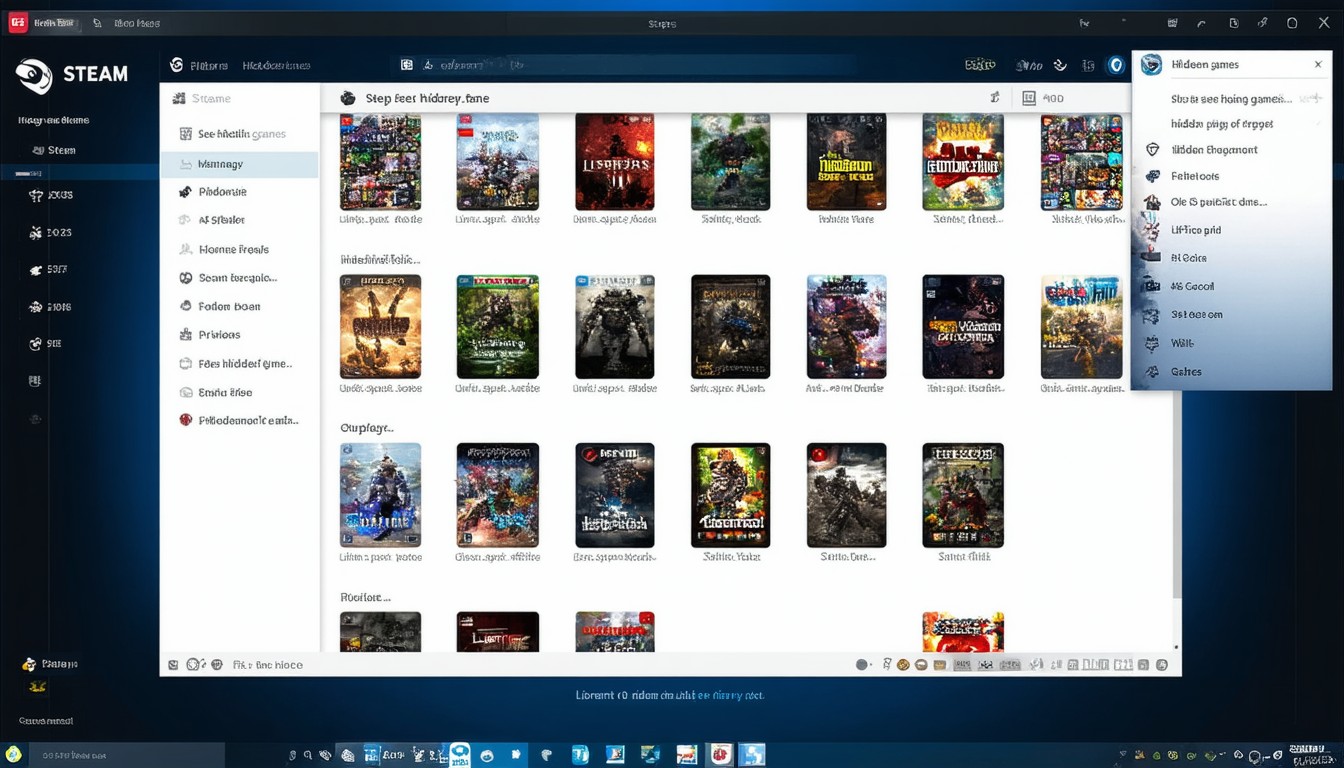
Steam, the world’s largest digital gaming platform, offers countless customization options for organizing your library. For many users, hiding games is a simple way to declutter the interface—whether to remove a completed title, sideline an unfavorite purchase, or keep a surprise from prying eyes. Yet with backlogs growing and digital libraries sprawling, it’s easy to forget which games you’ve hidden or how to access them again. Knowing how to see hidden games on Steam can help you rediscover lost gems, maintain better control over your collection, and take full advantage of your purchased titles.
Understanding Steam’s Hidden Library Feature
Steam’s ‘Hide this game’ function was designed as a tool for personalized library management, not permanent removal. When you hide a game, it’s removed from immediate view in your main library, but remains fully owned, playable, and eligible for updates. According to Valve’s own documentation, hidden games can be revealed in just a few clicks—a convenience for users with hundreds or even thousands of purchased titles.
Game hiding on Steam typically serves three core purposes:
- Organizing an extensive library.
- Reducing visual clutter.
- Managing privacy or parental controls.
Unlike deleting or uninstalling, hiding is reversible and causes no loss of access. While Steam offers advanced filters, the hidden section is the most direct means of tucking away games without impacting your account or achievements.
Step-by-Step Guide: How to See Hidden Games on Steam
The process for viewing hidden games has remained consistent even as Steam’s interface has evolved. Here’s how to quickly find your hidden titles using the most up-to-date version of the Steam desktop client.
1. Launch Steam and Navigate to Your Library
Open the Steam app and log into your account. In the top navigation bar, click on ‘Library’. This takes you to your main list of games.
2. Access the Hidden Games Menu
In the left sidebar, where games are listed, scroll down to the bottom. Here, you’ll find a category labeled “Hidden.” If you don’t see it, right-click anywhere in the sidebar and ensure “Show Hidden Games” is checked.
- On some installations, the “Hidden” category may be collapsed—click the arrow to expand.
- If you have never hidden a game, this section might be empty or not visible.
3. Review and Manage Your Hidden Games
Clicking the “Hidden” tab will display every game you’ve previously hidden. From here, you can:
- Launch hidden games directly.
- Right-click a title and select “Remove from Hidden” to return it to your main library.
This process works for both Windows and macOS. The UX is nearly identical across platforms, though slight UI tweaks may appear in future updates.
“Steam’s hidden games feature provides users with both privacy and organization, allowing for effortless toggling without impacting access or ownership,” notes game librarian and digital archivist, Alex Monroe.
4. On the Steam Deck and Mobile App
While the primary workflow is on desktop, Steam Deck and Steam’s mobile app also support hidden libraries (though with more limited UI controls). On a Steam Deck, navigate to your Library, press the filter button, and select “Hidden.” On mobile, access isn’t universally supported—consult the latest patch notes or FAQ for updates.
Why Gamers Hide and Unhide Games
Behind every hidden game is a story. For some, it’s an attempt to clear away a backlog and focus on what matters most. In multi-user households, it can double as a parental control or a way to keep surprise gifts secret. Others prefer to mask titles from friends or avoid “Game shame,” a growing cultural trend where users hide games they feel embarrassed about (a trend noted in several community forums and by gaming sociologists).
On the other hand, rediscovery is often exhilarating. Anecdotal evidence from gaming subreddits reveals users regularly sweep through their hidden games every few months, uncovering forgotten purchases or replayable classics.
Troubleshooting: If You Can’t Find the Hidden Games Section
Despite its straightforward functionality, a few common issues can prevent users from seeing hidden games:
Filters and Interface Issues
Occasionally, library filters or UI changes following updates may cause the Hidden section to disappear. If this occurs:
- Check the Library View settings to ensure “Games” is selected (not “Collections” or “Recent”).
- Use the search bar and type “is: hidden” to pull up hidden titles directly.
- Verify the Steam client is updated to the latest version.
Steam Family View and Parental Controls
Steam Family View can restrict access to certain content, including hidden games. If Family View is enabled, temporarily disable it to gain full library access.
For persistent issues, logging out and back in, or restarting the client, often resolves display bugs.
Security, Privacy, and Account Management Considerations
The hidden games feature is a privacy layer, not an absolute security tool. Hidden games can still be accessed and launched by anyone with access to your Steam account. For sensitive content or enhanced parental control, Steam also offers Family Options, including PIN protections and content filters.
Steam accounts are increasingly seen as long-term digital assets. As digital ownership grows, so does the need for effective management tools—including ways to quickly hide or reveal purchases. This feature remains one of Steam’s most user-friendly solutions for account organization.
Conclusion: Taking Control of Your Steam Library
The ability to see hidden games on Steam empowers users to customize their digital library with precision and privacy. By leveraging the simple steps outlined above, anyone can regain access to sidelined titles and ensure every purchase remains within reach. As gaming collections—and their value—continue to rise, effective library management will only grow in importance.
FAQs
How do I unhide games on Steam?
To unhide a game, navigate to the “Hidden” section in your Steam Library, right-click the game you want to restore, and select “Remove from Hidden.” It will return to your main library instantly.
Can hidden Steam games receive updates and achievements?
Yes, hidden games remain fully functional. They can still receive updates, downloadable content, and all progress or achievements are retained.
Is hiding a game the same as uninstalling or deleting it?
No. Hiding a game simply removes it from plain view in your library. The game file remains installed (if previously installed), and your ownership and access remain unchanged.
Can I hide non-Steam games or shortcuts added to my library?
Most non-Steam shortcuts can be hidden just like regular Steam games, though results may vary depending on version and client updates.
Is hiding games available on Steam Deck and the mobile app?
The Steam Deck supports hidden games through its Library filters. On Steam’s mobile app, access to hidden games may be limited or unavailable depending on the current app version.