

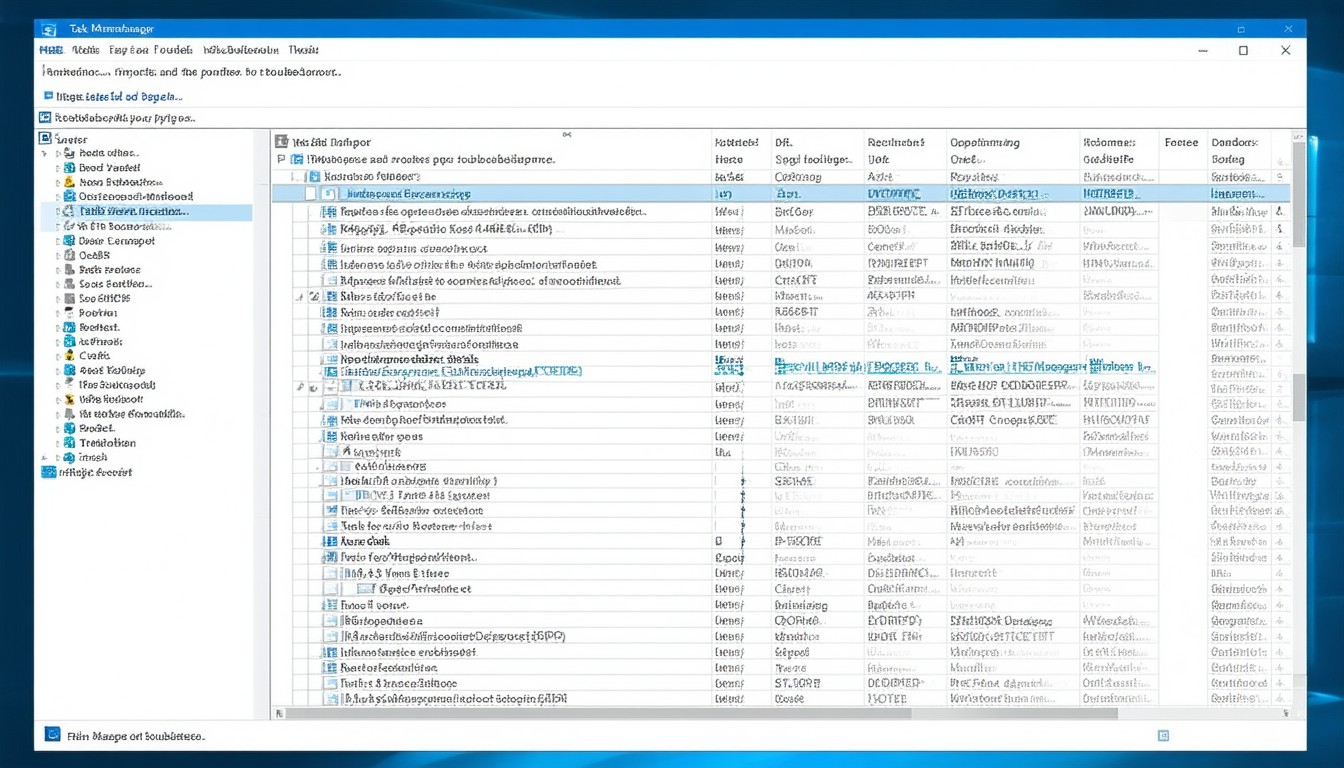
Navigating system performance and troubleshooting issues are everyday tasks for millions of Windows 10 users. At the heart of these activities is the Task Manager—a built-in tool that serves as a real-time monitor for processes, applications, and system resources. While it has been a staple of Windows operating systems for decades, its interface and capabilities in Windows 10 make it more indispensable than ever for both casual users and IT professionals alike.
Opening Task Manager in Windows 10: Multiple Methods for Any Situation
Many Windows 10 users first encounter Task Manager when an application freezes or the system becomes sluggish. Windows provides several ways to access Task Manager, catering to different scenarios—whether the system is responsive or temporarily uncooperative.
Quick Access Shortcuts
The most direct and widely used method:
– Ctrl + Shift + Esc: This keyboard shortcut launches Task Manager instantly.
– Ctrl + Alt + Delete: Selecting Task Manager from the menu after pressing these keys is especially helpful when the desktop is unresponsive.
Alternative Entry Points
For users who prefer mouse navigation or need to access Task Manager through non-standard routes:
– Right-click Taskbar: Selecting “Task Manager” from the context menu is fast and familiar.
– Start Menu Search: Typing “Task Manager” into the search bar and selecting the app.
– Run Command: Press Win + R, then type taskmgr and hit Enter.
Regardless of the approach, Task Manager is designed to be accessible even in compromised system states, making it a vital troubleshooting ally.
Understanding the Task Manager Interface
Once open, Task Manager offers a layered view, beginning with a simple summary and extending to in-depth technical data. Windows 10 features a more intuitive layout than past versions, segmenting information across several tabs.
Key Tabs Overview
- Processes: Displays all running applications and background tasks, allowing users to identify resource hogs or frozen programs.
- Performance: Real-time graphs for CPU, memory, disk, and network usage. The visualization helps pinpoint bottlenecks and monitor overall health.
- App History: Useful for users who want to track resource usage over time, especially for Windows Store apps.
- Startup: Controls which programs launch at boot, enabling quicker system startups by disabling unnecessary entries.
- Users: Lists logged-in users and their respective resource usage.
- Details & Services: Offer granular control and management for advanced troubleshooting.
Customization and Resource Tracking
Task Manager in Windows 10 allows sorting by columns, filtering, and right-click context actions—enabling quick process termination or priority adjustment without overwhelming less experienced users.
“The Task Manager in Windows 10 strikes an essential balance between user-friendliness and technical depth, serving both the everyday user and the IT support professional,” explains Michael Cherry, a veteran Windows analyst.
Practical Applications: Terminating Processes, Managing Startup, and Monitoring System Performance
Task Manager is more than a process monitor—it’s an interactive hub for system management and troubleshooting.
Force-Quitting Unresponsive Applications
When faced with the classic “Not Responding” message, Task Manager enables users to force-close misbehaving apps:
1. Navigate to the Processes tab.
2. Locate the application or process.
3. Select and click “End task.”
Beyond this reactive use, regularly reviewing running processes can alert users to unexpected or unwanted applications running in the background—an essential step in maintaining system security.
Optimizing Startup Applications
Excessive startup programs can drag down boot and overall system speed. The Startup tab identifies the impact level (low, medium, high) of each entry, allowing users to make informed decisions about what to enable or disable.
Monitoring Resource Usage
For power users, the Performance tab provides:
– Real-time CPU, memory, disk, and networking statistics
– Historical data graphs
– Hardware details (such as socket, virtualization, or RAM speed)
These insights are critical for troubleshooting slowdowns, diagnosing hardware bottlenecks, or managing resource-heavy workflows like gaming or video editing.
Advanced Features: Going Beyond Basic Troubleshooting
While many users rely on Task Manager for its basic features, Windows 10 includes powerful capabilities under the surface for advanced diagnostics.
Viewing and Managing Services
The Services tab lists all Windows services, indicating running states and providing shortcuts to the broader Services management application. This access assists IT teams in identifying stalled or malfunctioning services.
Investigating Command Line Arguments and Process Origins
Right-clicking a process and selecting “Open file location” or “Go to details” can help trace unfamiliar programs, a valuable step in fighting malware and unwanted software.
GPU Monitoring
Since the Fall Creators Update, Task Manager now displays GPU usage—for both graphics professionals and gamers, this is a welcome addition for fine-tuning performance or troubleshooting rendering issues.
Common Issues and Troubleshooting Strategies
Even a robust utility like Task Manager can sometimes fail to open, crash, or refuse to end a problematic process.
What to Do If Task Manager Fails to Open
- Corrupted System Files: If Task Manager won’t launch, corrupted system files may be the culprit. Running System File Checker (
sfc /scannow) via Command Prompt can often resolve these problems. - Registry or Group Policy Restrictions: In some cases, Task Manager may be disabled intentionally or by malware. If you see “Task Manager has been disabled by your administrator,” group policy or registry edits may be required to restore access.
When Processes Refuse to Terminate
Some critical or system-level processes cannot be ended via Task Manager for security and stability reasons. Persistent malicious software may also evade termination. In these situations, leveraging Safe Mode or command-line tools such as Taskkill may be necessary.
Task Manager as a Security Sentinel
A sudden surge in CPU or memory, or the presence of unknown processes, often signals malware or software conflicts. Regularly reviewing the Processes and Details tabs keeps systems safer and more efficient.
Task Manager in Enterprise and IT Contexts
Within business environments, Task Manager plays a role in first-line support and diagnostic routines. Many IT departments train users to gather diagnostic data from Task Manager before submitting support tickets, streamlining the resolution process and minimizing downtime.
Additionally, enterprise users benefit from features like user session management and detailed resource monitoring, which aid in both remote assistance and compliance with IT governance.
Conclusion
Task Manager in Windows 10 is an essential utility that bridges the gap between simple user interface and deep system management. From launching with a quick key combination to delving into real-time hardware monitoring and advanced troubleshooting, its blend of accessibility and technical capability makes it a core tool for home and professional users alike. Regular familiarity with Task Manager not only streamlines system troubleshooting but also enhances proactive system health and security.
FAQs
How do I open Task Manager if my screen is frozen?
If Windows appears frozen, try pressing Ctrl + Shift + Esc or Ctrl + Alt + Delete and selecting Task Manager from the menu. These shortcuts can work even when the system is slow or unresponsive.
Can I disable startup programs using Task Manager?
Yes. Use the Startup tab in Task Manager to view and disable or enable programs that launch with Windows, which can help speed up boot times.
Why can’t I end certain processes in Task Manager?
Some processes are vital to system stability or security and cannot be terminated through Task Manager. Malware may also prevent termination; additional security steps may be needed in such cases.
Is it possible to recover a closed application using Task Manager?
No, ending a task closes it without saving work. There’s no way to “reopen” it from Task Manager. It’s important to save frequently to avoid data loss.
What should I do if Task Manager is disabled by my administrator?
This may be due to system policy or malware. Contact your system administrator if you’re on a managed device, or use Group Policy/Registry Editor to re-enable Task Manager if you have necessary permissions.
Does Task Manager show GPU usage in Windows 10?
Recent Windows 10 updates added GPU monitoring to Task Manager. Check the Performance tab to view real-time graphics processor activity.












