

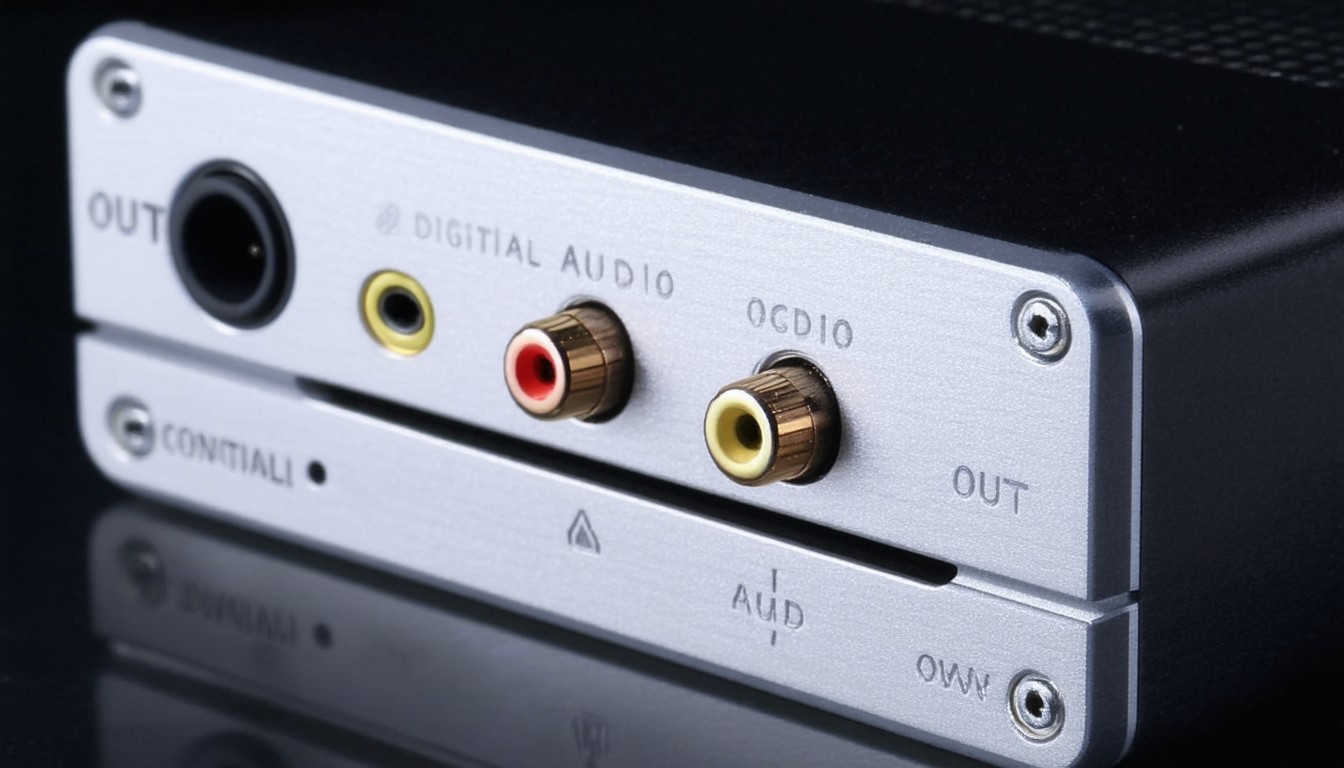
Digital entertainment systems have seen remarkable evolution over the past three decades. One technology that has quietly shaped the quality and clarity of audio connections is the optical digital audio out port—commonly referred to as TOSLINK (Toshiba Link) or S/PDIF (Sony/Philips Digital Interface Format). This optical port is found on televisions, soundbars, gaming consoles, AV receivers, and other technology designed to transmit high-fidelity digital sound.
Optical digital audio out works by sending audio signals as pulses of light through a fiber optic cable. Unlike analog connections prone to electrical interference and signal degradation, optical connections deliver precise, lossless sound over moderate distances. As streaming media, Blu-ray, and multi-channel audio grow in popularity, understanding the benefits and setup of optical digital audio out becomes increasingly relevant for anyone pursuing better sound at home.
How Optical Digital Audio Out Works
Basics of Fiber Optic Audio Transmission
At its core, an optical digital audio out port converts digital audio signals into light. This light travels through a flexible fiber optic cable made from plastic or glass, terminating at a compatible device—usually an audio receiver, DAC, or soundbar. The receiving device translates the light pulses back to digital information, which is then converted to analog audio for speakers or headphones.
The technology relies on standardized formats, with TOSLINK and S/PDIF being most common. These can transmit stereo (2.0) or compressed multichannel (5.1, sometimes 7.1) surround sound, depending on device capabilities.
Signal Quality and Interference
Optical cables are immune to electromagnetic interference, ensuring the digital audio remains clean and uncorrupted during transmission. In contrast, copper-based analog or coaxial cables can pick up interference from household electronics or power lines, leading to audible noise.
“The optical connection’s inherent resistance to ground loops and electrical noise makes it a long-standing choice for audiophiles and home theater designers seeking reliable clarity.” – Audio Engineering Society technical brief
Supported Audio Formats
While optical digital audio has clear benefits, it’s important to recognize its limitations. Most optical connections support:
- PCM stereo (uncompressed 2.0 audio)
- Dolby Digital (up to 5.1 surround, compressed)
- DTS Digital Surround (up to 5.1, compressed)
However, optical can’t transmit higher-bandwidth formats such as Dolby TrueHD or DTS-HD Master Audio, which require HDMI eARC or similar protocols.
Where Is Optical Digital Audio Out Used?
Televisions and Streaming Devices
A significant number of flat-panel TVs continue to include optical digital audio out, especially as HDMI eARC adoption is still maturing. Streamers such as Roku, Apple TV, and older gaming consoles also feature optical output, enabling users to connect directly to external audio systems.
Soundbars and AV Receivers
Many soundbars and home theater receivers feature optical inputs, making the format invaluable for connecting display devices to upgraded sound systems without HDMI passthrough. This is particularly useful in setups where the TV serves as the central hub for streaming and switching between sources.
Professional and Legacy Equipment
In studios, optical S/PDIF remains a practical interface between digital recorders, converters, and mixing consoles. It’s also prevalent in CD/DVD/Blu-ray players predating widespread HDMI support.
Real-World Example
Consider a scenario where a user owns a smart TV with a built-in streaming platform but desires better sound. The TV’s HDMI ports are all in use, but it features an optical audio output. Connecting an optical cable to a soundbar delivers clean, high-quality sound for movies and TV, easily improving the viewing experience without complicated rewiring.
Setting Up an Optical Digital Audio Connection
Required Hardware and Cables
Setting up an optical digital audio out connection begins with the right components:
- Source device: TV, gaming console, or Blu-ray player with optical out
- Receiving device: Soundbar, AV receiver, digital-to-analog converter (DAC) with optical in
- Optical (TOSLINK) cable: Flexible fiber optic cable with protective end caps
- Adapter (if needed): Some newer devices use mini-TOSLINK—a smaller, 3.5mm variation
Step-By-Step Connection Guide
- Inspect each device: Find the optical digital audio out port on your source and the optical in port on your receiver or soundbar. Ports are usually labeled “Optical” or “Digital Out” and feature a distinct square shape (or 3.5mm for mini-TOSLINK).
- Remove protective caps: Take off the plastic tips from the optical cable. Handle the ends carefully to avoid damaging the fiber.
- Insert and secure: Line up the connector and gently insert cables into both ports until they click; avoid forcing the connection.
- Change audio settings: Navigate to your source device’s audio menu. Select “Digital Out (Optical)” or a similar setting and choose the desired audio format (PCM for stereo or Bitstream for surround).
- Test audio: Play content and confirm audio is routed to the external device. Adjust sync or lip-sync settings if needed.
Common Troubleshooting Tips
- No audio: Confirm cables are seated firmly, and correct input is selected on the receiver.
- Audio drops out: Reseat cable; inspect for kinks, dust, or sharp bends impairing light transmission.
- Incompatible format: If surround sound isn’t working, choose “PCM” or “Dolby Digital” in the source’s settings.
Optical Audio vs. HDMI Audio: Key Differences
Optical digital audio and HDMI are often compared, especially in home theater discussions. While both support digital sound transmission, their capabilities and use cases differ.
Optical Audio
– Supports PCM stereo and compressed surround sound (up to 5.1)
– Immune to electrical interference
– Can’t carry video or high-bitrate formats
HDMI
– Supports high-definition audio formats, including uncompressed 7.1 and object-based sound (Dolby Atmos, DTS:X)
– Transfers both video and audio through a single cable
– Newer HDMI (eARC) offers automation and advanced features
For most users with basic surround needs, optical remains a reliable, user-friendly option—particularly when HDMI ARC/eARC isn’t available or compatible.
Conclusion: Is Optical Digital Audio Out Still Relevant?
Optical digital audio out maintains a unique place in the world of digital audio connections. For users seeking robust, interference-free transmission of stereo or compressed surround sound—especially from TVs and legacy devices—optical ports continue to deliver value. While newer standards like HDMI eARC offer additional features and support for higher-resolution audio, the simplicity, reliability, and wide compatibility of optical digital audio make it a trusted tool for enthusiasts and everyday users alike.
FAQs
What is the main purpose of optical digital audio out?
Optical digital audio out is designed to send high-quality digital audio from a device like a TV or console to an external sound system using light signals through a fiber optic cable.
Can optical out transmit surround sound?
Yes, it can transmit compressed surround sound formats such as Dolby Digital and DTS (up to 5.1 channels), but it’s not compatible with higher-resolution audio formats like Dolby TrueHD.
Is optical audio better than HDMI?
For many home setups, both provide excellent digital sound, but HDMI supports newer audio formats and also carries video. Optical is advantageous where electrical interference is a concern or when HDMI is unavailable.
How do I know if my TV has optical digital audio out?
Look for a small, square port labeled “Optical,” “Digital Out (Optical),” or “S/PDIF” on the back or side of your TV. Some models may use a mini-TOSLINK (3.5mm) port instead.
Do I need a special cable for optical audio connections?
You need a standard TOSLINK optical cable, which is widely available and easily identified by its square-shaped connectors. Some devices may require a mini-TOSLINK adapter.
Why is there no sound after connecting optical audio?
Check that the cable is securely connected, remove any plastic end caps, select the correct input on your sound system, and ensure the TV or source device is set to output audio via the optical port.












